Why Printing Checks with QuickBooks Makes Sense for Your Business
If you are a business owner and are looking for a great way to print your own checks to pay your employees as well as your vendors, then using QuickBooks to print your checks is exactly what you have been looking for.
When you have the ability to print your own checks it makes the whole process much quicker and you do not have to rely on the bank or a third party to send you the checks when they are ready. There are many great aspects to printing your own checks through QuickBooks, one of which is that you save time and also it helps you to maintain accurate accounting records.
With QuickBooks every time you print a check it keeps track of all of the transactions so that you can keep track of your billing, expense tracking, and reports which will help you keep your small business running smoothly.
Using your computer to print checks with QuickBooks is made easy with the software and all of your accounting information and data is stored in a central location where you can easily access it and can find all of your vendor and employee information quickly and easily to fill out the checks.
To start the printing process, all you have to do is to fill out the form provided by QuickBooks, which looks like a real check and QuickBooks will do the calculations that add and subtract the check amount from the proper areas of your business account. What makes it so much easier is that the information like the vendor's address and account numbers are all pre-filled so all you have to do is print the checks. With QuickBooks you can purchase everything you need to be able to print checks directly from QuickBooks, including the best paper types for printing checks on.
Once you have entered the check amounts and the information for the vendors is on the checks you can simply print them directly from online and you will have the check right there in your office in a matter of seconds. You can also get deposit slips and envelopes if you need to print and then mail the checks. These are all great things to have that will bring quality and a professional look to your business which is a good thing to have when you are paying your vendors and clients.
When you choose to print your checks with QuickBooks the process is easy and quick making it a very efficient way to pay your vendors and clients. When you fill out the check that is on the screen you will see "To Be Printed" in the upper right-hand corner and you then have the option to save the check, which is great if you are planning to print it later, or you can save and print the check right then.
You also have the option to make the check reoccurring so every time you need to pay that vendor you can easily print the same check just with a different amount if needed. Browse the full range of QuickBooks checks at Checkomatic to get started.
What You Need Before Printing Checks in QuickBooks
The original content correctly points out that you need the right paper types for printing checks. Here is the complete list of what to have ready before your first print run.
- QuickBooks Desktop or QuickBooks Online: Check printing is supported in all current QuickBooks Desktop editions (Pro, Premier, Enterprise) and all QuickBooks Online subscription tiers.
- QuickBooks-compatible check stock: Pre-printed check paper with your business name, bank name, routing number, and account number already on every sheet. The MICR line at the bottom is pre-printed in certified magnetic ink. Your laser or inkjet printer only needs to print the variable fields ; payee, amount, date, and memo.
- Laser or inkjet printer: Any standard office laser or inkjet printer that handles letter-size paper (8.5 by 11 inches) works. Do not use dot matrix or continuous-feed printers with standard check stock.
- The correct check format: Voucher, standard 3-on-a-page, or wallet. The format in QuickBooks printer settings must match the physical check stock loaded in your printer exactly.
- Your bank account linked in QuickBooks: The checking account your checks will draw from must be set up in QuickBooks with the correct bank name and account type before you can print.
The Three QuickBooks Check Formats Explained
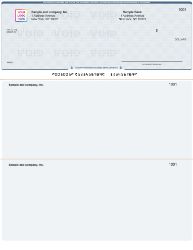
QuickBooks check on top (voucher format) ; one check per page with two detachable stubs for payroll and AP.
As the original content explains, QuickBooks pre-fills vendor and employee information when you fill out the on-screen check form. The format you select determines the layout of the physical check stock you load in your printer. Choosing the wrong format makes every field print in the wrong position.
| Format | Layout | Best For | QB Setting |
|---|---|---|---|
| Voucher | 1 check + 2 stubs per page | Payroll, AP, any check needing a stub | Select "Voucher" |
| Standard (3-on-a-page) | 3 checks per page; no stubs | High-volume AP; digital records only | Select "Standard" |
| Wallet | 3 smaller checks per page | Low-volume use; compact format | Select "Wallet" |
Voucher format is the most popular for businesses that print payroll checks through QuickBooks. The two stubs provide a physical record for both the employer and the employee. For a detailed comparison of all QuickBooks check formats and which situations call for each, see QuickBooks-compatible checks: voucher, wallet, and 3-on-a-page explained.
How to Set Up Check Printing in QuickBooks Step by Step
QuickBooks Desktop Setup
- Go to File, then Printer Setup. In the Form Name dropdown at the top of the dialog box, select Check or Paycheck.
- Select your check style. Under Check Style, click the radio button that matches the check stock you ordered: Voucher, Standard, or Wallet.
- Select your printer. Under Printer Name, choose the printer you will use for checks. If you use a dedicated check printer separate from your office printer, select that one.
- Run the alignment test. Click Align. QuickBooks generates a sample check layout. Print it on plain paper ; never on actual check stock. Hold the printed test against a real check and verify that the date field, payee line, amount box, and MICR line all fall in the correct positions. Adjust the alignment sliders in small increments until the test matches the check exactly.
- Write and queue a check. Press Ctrl+W or go to Banking, Write Checks. Fill in the payee, amount, date, account, and memo. Check the "To Be Printed" box to add it to the print queue, or print immediately.
- Print the check. For a single check: click Print in the toolbar and confirm the check number. For a batch: go to File, Print Forms, Checks. Select the bank account and confirm the starting check number. Select the checks to print and click OK.
For the complete QuickBooks Desktop setup walkthrough including common alignment fixes, see how to print checks from QuickBooks Desktop in 2026.
QuickBooks Online Setup
- Click the gear icon in the upper right corner. Under Tools, select Print Checks.
- Complete the first-time setup. QBO prompts you to choose a check style: Voucher, Standard, or Wallet. Select the one matching your check stock.
- Print the alignment page. QBO generates a test page. Print on plain paper, compare to your check stock, and adjust as needed before loading real checks.
- Link your bank account. Confirm the bank account you will draw checks from is set as a Bank type in QBO. This links the check printing to the correct account register.
- Print checks. Go to Expenses or Vendors. Create a bill or expense, then select Print Check. Alternatively, use the Print Checks option under the gear icon to batch-print queued checks.
For the complete QuickBooks Online setup guide including the 2026 updated interface walkthrough, see how to set up check printing in QuickBooks Online: step by step.
How to Print Recurring Vendor Checks in QuickBooks
As the original content correctly explains, QuickBooks lets you make checks recurring so you can print the same check to a vendor each payment cycle with only the amount changed. This is one of the most time-saving features of printing checks through QuickBooks, particularly for fixed monthly vendor payments like rent, subscriptions, or retainer agreements.
Memorizing a Check in QuickBooks Desktop
After filling out a check in the Write Checks window, click Memorize in the toolbar before printing. QuickBooks saves the transaction as a memorized check with the vendor name, account assignment, and amount. Set a reminder frequency: weekly, biweekly, monthly, or on a custom schedule. When the payment is due, open the Memorized Transaction list (go to Lists, then Memorized Transaction List), find the vendor check, update the amount if it has changed, and print.
Recurring Checks in QuickBooks Online
In QBO, go to the gear icon and select Recurring Transactions. Click New and choose Check as the transaction type. Fill in the vendor, bank account, amount, and schedule. Save the template. QBO generates the check automatically on the scheduled date and adds it to your print queue. Open Print Checks under the gear icon to print the queued checks as a batch.
Deposit Slips and Envelopes to Complete the Check Workflow
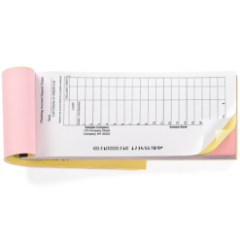
QuickBooks deposit slips from Checkomatic ; pre-printed with your account details for the complete check workflow.
As the original content notes, deposit slips and envelopes complete the check printing and mailing process. Here is how each fits into the QuickBooks workflow.
QuickBooks Deposit Slips
QuickBooks can print deposit slips directly from the Make Deposits function. When you finalize a deposit in QuickBooks and click print, the software fills in the payee names, check amounts, and total onto the pre-formatted slip. Your account details are already on the paper. The result is a clean, accurate, bank-ready deposit slip that processes at the teller or the bank's automated scanning equipment without any handwritten account information. For QuickBooks-formatted deposit slips that match the QuickBooks deposit template, see QuickBooks deposit slips at Checkomatic.
Double Window Envelopes for Check Mailing
When you mail QuickBooks-printed voucher checks, double window envelopes eliminate the need for address labels. The check stub contains both your return address and the payee's mailing address. When the check is folded correctly and inserted into a double window envelope, both addresses show through the two windows ; no labels, no handwriting, no extra printing step. For the full range of check mailing envelopes sized to fit QuickBooks voucher checks, see envelopes at Checkomatic.
Common QuickBooks Check Printing Problems and Fixes
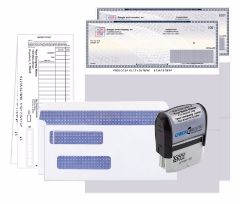
QuickBooks starter pack from Checkomatic ; checks, deposit slips, envelopes, and stamp in one order.
Problem 1: Fields Print in the Wrong Position
The most common issue. Cause: the Check Style in QuickBooks printer settings does not match the physical check stock loaded in the printer. Fix: go to File, Printer Setup (Desktop) or gear icon, Print Checks (Online). Confirm the Check Style selector matches your check format. Run the alignment test on plain paper before loading real checks.
Problem 2: Check Numbers Not Advancing Correctly
When QuickBooks asks which checks printed correctly after a print run, marking checks as "Did not print" prevents the check number from advancing for those items. If the starting check number in QuickBooks does not match the next sequential number on your physical check stock, the records become misaligned. Always confirm the starting check number in QuickBooks matches the first check number in your current batch before every print run.
Problem 3: MICR Line Not Recognized at Bank
If a bank rejects a check due to an unreadable MICR line, the most likely cause is that the check stock was printed with standard toner on a MICR-required bank, or the MICR line on pre-printed stock was overprinted by the software. Checkomatic's QuickBooks-compatible checks ship with the MICR line pre-printed in certified magnetic toner. QuickBooks only prints the variable data fields on top of the pre-printed stock ; it does not print over the MICR line. Confirm your QuickBooks settings do not have "Print bank information" enabled, which would cause the software to attempt to print the MICR line on top of the pre-printed line.
Problem 4: Printer Scaling Is Shrinking the Check
Many printers default to "Fit to page" or "Scale to fit" in print settings. This shrinks the check layout by 5 to 10 percent and misaligns every field. In your printer's print dialog, set scaling to 100 percent and page size to Letter (8.5 by 11 inches). Portrait orientation only. Never use Fit to page for check printing.
Accepted by the World's Leading Banks
Every QuickBooks-compatible check from Checkomatic is manufactured to ABA specification and accepted at all US banks. The MICR line is pre-printed in certified magnetic toner and verified against the Federal Reserve E-Payments Routing Directory before every production run. When you print your checks through QuickBooks on Checkomatic check stock, the completed check clears at Chase, Bank of America, Wells Fargo, Capital One, TD Bank, and every other major US financial institution without issue. For the full range of QuickBooks-compatible formats, see QuickBooks checks and computer checks for business at Checkomatic.
What Customers Say About Printing Checks with Checkomatic
All reviews below are published on checkomatic.com and reproduced verbatim. Source: checkomatic.com/quickbooks-starter-pack-product, 4.5 stars from 166 verified reviews.
"First time ordering and I am super impressed with the quality of the checks. No issues with delivery. I will be ordering again!"
TClinton | ★★★★★ 5/5 | April 9, 2025 | Source: checkomatic.com/quickbooks-starter-pack-product
"Been with them for 15 years. Always reliable, always good quality, good service. What more can you ask for?"
ATV Inc. | ★★★★★ 5/5 | April 5, 2024 | Source: checkomatic.com/quickbooks-starter-pack-product
"We use CheckoMatic for all of our check needs! They have great prices and we receive our products in a timely manner!"
CG's Tax Service | ★★★★★ 5/5 | September 18, 2024 | Source: checkomatic.com/quickbooks-starter-pack-product
"I got 500 checks for less than half of what the bank wanted for 200!"
VVA Voucher Checks (Vietnam Veterans of America) | ★★★★★ 5/5 | July 6, 2024 | Source: checkomatic.com/quickbooks-starter-pack-product
"ASJ Wilson Construction has been a client of checkomatic for some years now and they've never disappointed this company. Thank you checkomatic for all that you do."
ASJ Wilson Construction | ★★★★★ 5/5 | June 6, 2024 | Source: checkomatic.com/quickbooks-starter-pack-product
"Affordable and efficient. My go-to business check printer."
Doe | ★★★★★ 5/5 | January 24, 2025 | Source: checkomatic.com/quickbooks-starter-pack-product
Why Choose Checkomatic for QuickBooks Check Printing
Pre-Formatted for QuickBooks Out of the Box
Checkomatic's QuickBooks-compatible checks are sized and positioned to match QuickBooks default print templates for all three formats. The alignment adjustment most users need is under 0.1 inch. Checks from sources not formatted to QuickBooks specifications often require 0.5 to 1.0 inch adjustments and multiple test runs.
MICR Line Pre-Printed in Certified Magnetic Toner
The MICR line is pre-printed on every check before shipment and verified against the Federal Reserve routing directory. QuickBooks does not need to print the MICR line and your printer does not need MICR toner. Standard laser or inkjet toner handles only the variable fields QuickBooks outputs.
All Three QuickBooks Formats Available
Voucher, standard 3-on-a-page, and wallet formats ; all manufactured at Checkomatic's own facility in Monroe, NY. Free black-and-white logo printing on every order. 20 color options. Six security features at base price: microprinting, chemically sensitive paper, void pantograph, UV fluorescent fibers, heat-sensitive ink, and genuine watermark.
Complete QuickBooks Bundle Available
The QuickBooks starter pack bundles checks, QuickBooks deposit slips, double-window envelopes, and a pre-inked endorsement stamp in one order. Everything arrives matched and formatted to the same QuickBooks setup. For the complete bundle, see business check starter kit. For checks only, see QuickBooks checks.